
Notebooks
Notebooks (⌘8) is a Jupyter environment inside the app, running on the container’s own Python interpreter (SimNIBS + TI-Toolbox), so nothing needs installing.
Notebooks are ordinary .ipynb files in your project, under
<project>/code/ti-toolbox/notebooks/. Saving round-trips the document, so a notebook edited here
and a notebook edited in Jupyter Lab produce the same file.
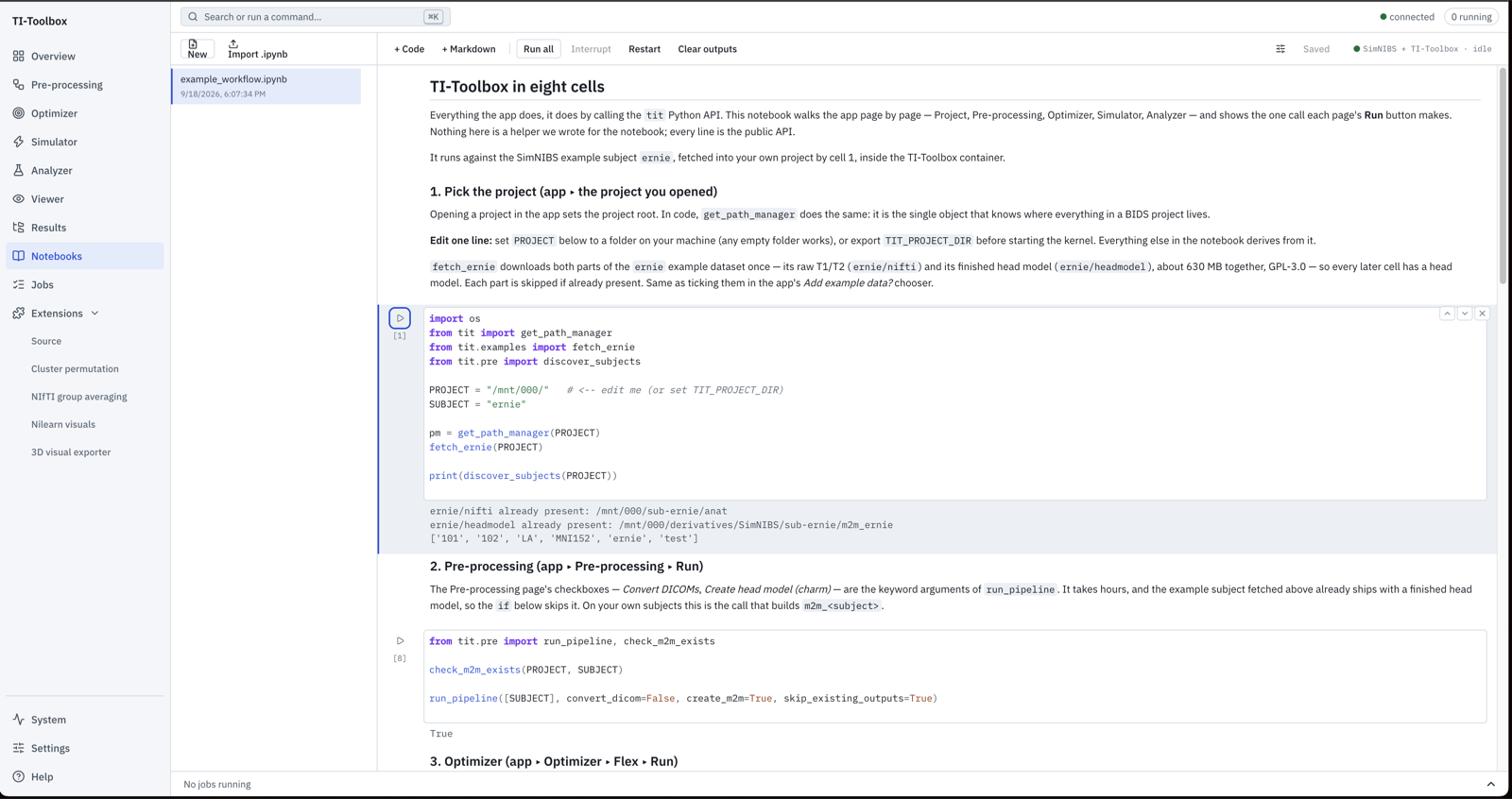 The seeded worked example, run against a real project. Each cell makes the same call as one page of the app.
Editing
Editing is modal, the way Jupyter is: ↵ enters a cell, Esc leaves it, ⇧↵ runs the cell and moves to the next, ⌘↵ / Ctrl+↵ runs it in place, and ⌥↵ / Alt+↵ runs it and inserts a new cell below. Code cells are CodeMirror 6 with Python highlighting.
Completion (⇥ or ⌃Space) and signature help (⇧⇥, or typing () are answered by the kernel, not
by a language server — so they know what your variables actually are, and they are only available
once a kernel is up. A keystroke never starts a kernel.
The kernel
off · starting · idle · busy · dead, and clicking it starts or restarts. The interpreter takes a few seconds to come
up the first time.
The example notebook
Every project gets one seeded notebook the first time you open the page,
examples/example_workflow.ipynb. It walks the app page by page — project, pre-processing,
Optimizer, Simulator, Analyzer, results — one cell per page, showing the single tit API call
each page’s Run button makes. Cell 1 fetches the ernie example subject
(Example Data), so it runs without your own data.
The same calls are explained on the Scripting page.
⬇ Download example_workflow.ipynb View on GitHub
When a TI-Toolbox update ships a newer version, your copy is refreshed only if you never edited it; an edited copy is yours. Deleting it is permanent; there is no “restore example”.