
Windows Installation
Start with the quick start to choose the desktop app or command-line launcher. This page covers Windows setup.
Docker Desktop and WSL2
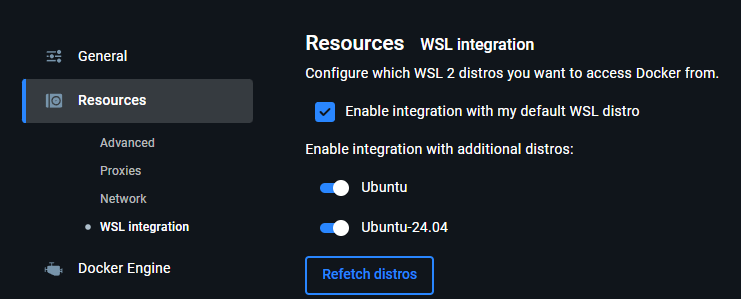
Install Docker Desktop with its WSL2 backend and an Ubuntu WSL distribution. Start Docker
Desktop, open Settings → Resources → WSL Integration, and enable your Ubuntu distribution.
Open Ubuntu and check that docker version can reach the engine.
No VcXsrv or X11 forwarding is required for the toolbox interface.
Command-line launcher
Run the command-line launcher inside Ubuntu/WSL2.
Bash needs Docker Compose and curl; loader.py needs Python 3.11+. Either spelling of a project
path works: C:\Users\YourName\datasets\project-copy is translated to
/mnt/c/Users/YourName/datasets/project-copy, and that Linux spelling is what Docker Desktop
bind-mounts.
Inside WSL the launcher uses your Windows browser: the Linux desktop build cannot run there, so
nothing is downloaded, and --desktop is refused with a pointer to the Windows installer below.
The launcher prints an authenticated URL at http://127.0.0.1:<port>/auth/session?... and opens
it on the Windows side (through wslview when wslu is installed,
otherwise PowerShell). If it reports that it could not open a browser, paste the printed URL into
one yourself. Do not share its session token.
The launcher checks for an NVIDIA GPU before starting: with a current Windows NVIDIA driver and
Docker Desktop’s WSL2 backend it prints CUDA GPU verified; otherwise it says so and continues on
the CPU.
Electron on Windows
Use native Windows project paths in the desktop app, such as
C:\Users\YourName\datasets\project-copy; do not use WSL paths.
Download the EXE from desktop downloads, run the installer, then open TI-Toolbox from the Start menu. Choose your project folder and select Open project. If Docker Desktop was just installed or updated, restart it before launching the app.
The desktop app talks to Docker Desktop directly over its Windows named pipe (the one your
current docker context names, else dockerDesktopLinuxEngine, else docker_engine), so it
does not need WSL Integration or docker on your PATH; it only needs Docker Desktop running with
the WSL2 backend. The app’s log is at %APPDATA%\ti-toolbox-desktop\logs\main.log; each launch
records which pipe it used.
Troubleshooting
If the Ubuntu launcher cannot reach Docker, check WSL Integration and restart Docker Desktop. For job and application problems, use the troubleshooting archive.