Dependencies
1. Docker is required for running the TI Toolbox containerized environment.
Windows/macOS: Install Docker Desktop
Linux: Install Docker Engine using your distribution’s package manager.
Post-Installation Configuration:
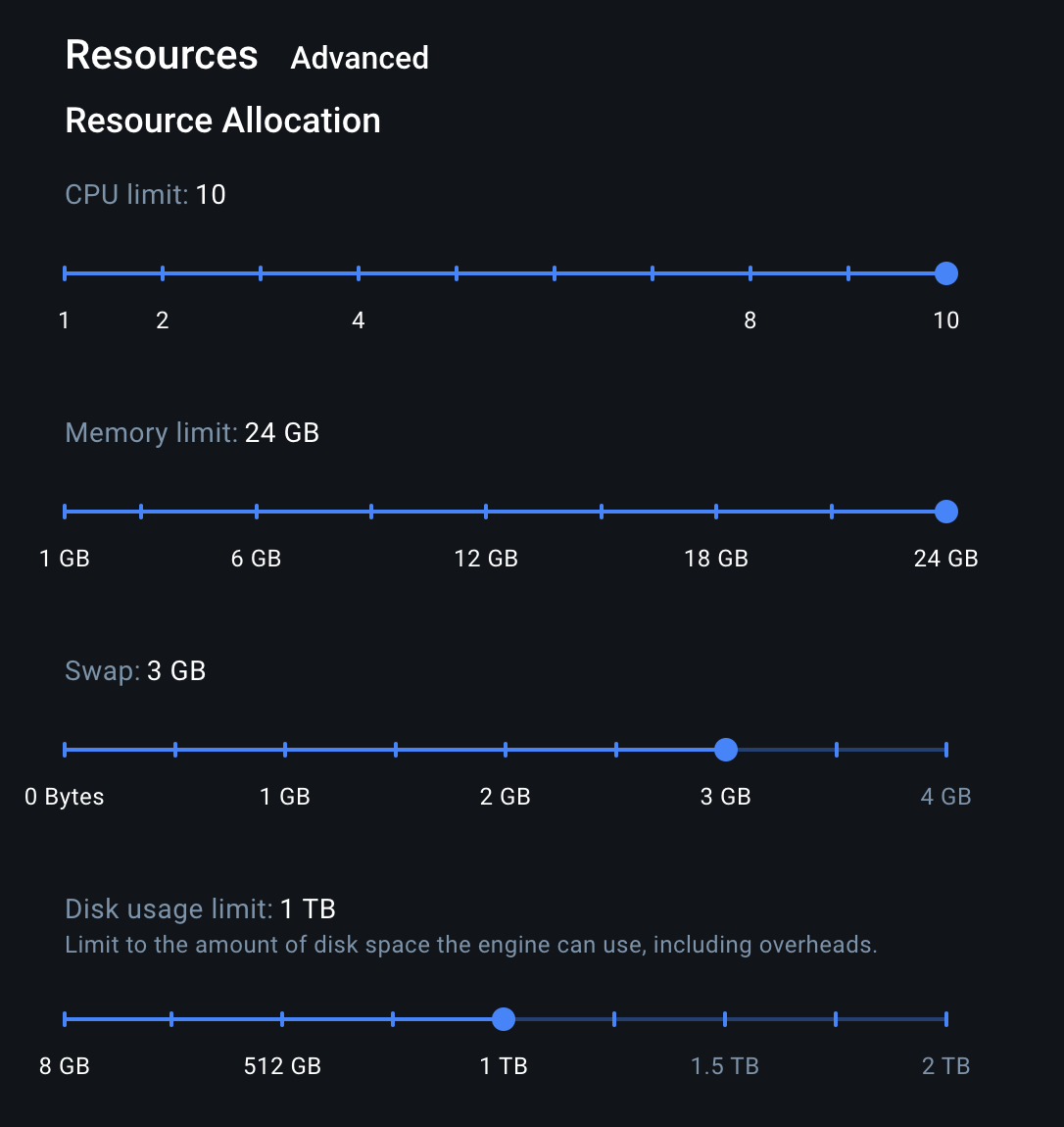
- Open Docker Desktop settings
- Go to “Resources”
- Allocate at least 32GB RAM (recommended)
- Ensure you have at sufficient free disk space
2. X Server Optional, if GUI is desired.
macOS: Install XQuartz 2.7.7
⚠️ Important: XQuartz version 2.7.7 is required for proper OpenGL functionality. Higher versions may cause OpenGL rendering issues.
Setup Steps:
- Download and install XQuartz 2.7.7
- Log out and log back in (required for X11 initialization)
- Launch XQuartz from Applications > Utilities
- XQuartz will be configured automatically by TI Toolbox
Windows: Install VcXsrv
⚠️ Do not use Xming - it has compatibility issues with the TI Toolbox.
Configuration:
- Launch XLaunch from the Start Menu
- Select “Multiple windows”
- Select “Start no client”
- Important: Check “Disable access control”
- Keep VcXsrv running while using TI Toolbox
Linux: X11 is usually pre-installed on most Linux distributions.
If GUI doesn’t appear:
xhost +local:docker
System Requirements
Minimum Requirements
- RAM: 32GB minimum (recommended for full functionality)
- Storage: At least 30GB free space for Docker images
- Administrative privileges: Required for initial setup
Verification
Test Docker Installation
# Check Docker version
docker --version

# Test Docker functionality
docker run hello-world
Test X Server
- macOS: Launch XQuartz and verify it runs without errors
- Windows: Launch VcXsrv and ensure it’s running in system tray
- Linux: Run
echo $DISPLAYto verify X11 is configured
Next Steps: Once dependencies are installed, proceed to your platform-specific installation guide: